




| Windows 7 - Win 11 | v3.5.1 |
|---|---|
|
Get iGetter from Microsoft Store: Windows 10 users, first update Microsoft Store |
|
| English | Download |
| Armenian | Download |
| Arabic (Egypt) | Download |
| Bulgarian | Download |
| Chinese (Simplified) | Download |
| Chinese (Traditional) | Download |
| Deutsch | Download |
| Farsi | Download |
| Français | Download |
| Japanese | Download |
| Hindi | Download |
| Hungarian | Download |
| Indonesian | Download |
| Italiano | Download |
| Polish | Download |
| Portuguese (Brazil) | Download |
| Portuguese (Portugal) | Download |
| Romanian | Download |
| Russian | Download |
| Thai | Download |
| Turkish | Download |
| Ukrainian | Download |
| Vietnamese | Download |
| Crossover 22+ users (macOS 10.15+ and Linux) |
Read |
| Chocolatey users (PowerShell command) |
choco install igetter |
| MD5: 6F66F7909718BF0568C6E43FD83324BC | |

| macOS 10.15 or later (via Wine 11 with Rosetta 2) |
v3.5.5 |
|---|---|
| Complete DMG install: | Download |
| MD5: CA6F2FC3BD651A7153B1EC73EB5EF032 | |
| This installs Wine stable 11.0 and optimized Win32 version of iGetter that integrates seamlessly with macOS Finder and browsers such as Chrome, Edge and Firefox. Startup time and download speeds are as fast as those of a native macOS app. | |
| 1. Download and open DMG file. | |
| 2. Copy the iGetter folder to /Applications | |
| 3. Navigate to /Applications and open iGetter folder |
|
| 4. Double click on Update_iGetter.command Follow the installer instructions to complete the iGetter installation. |
|
| 5. Drag Launch_iGetter.command to the files section of the Dock. Then, start iGetter by running Launch_iGetter.command. | |
| 6. Please, click Allow when permission dialogs appear for wine. | |
| 7. Select menu Tools > Integrate with Internet Browsers and install iGetter extension in Chrome, Edge or Firefox. | |
| Read more... | |
Installation Instructions (Windows version):
Download iGetter (Windows version) to your hard drive and run the executable to install the iGetter Download Manager. You can also install iGetter from the Microsoft Store or if you prefer use Winget command line tool.
Windows 10 users should update Microsoft Store in order to find and install iGetter Download Manager. In Microsoft Store, select See more ... > Downloads and updates > Get updates. If an update for Microsoft Store is available, it will start installing automatically.
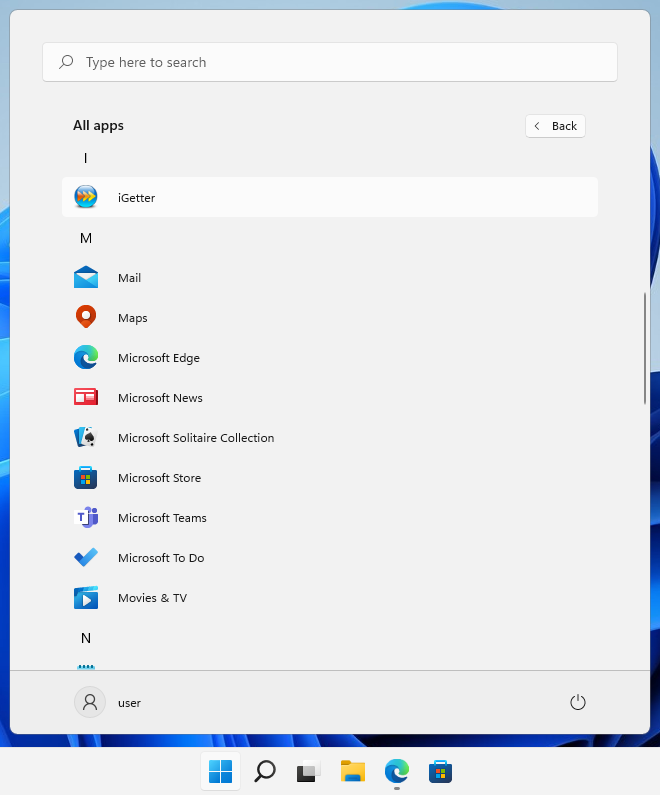
To start the iGetter app, after the installation (either from the installer or Microsoft Store), select Windows Start button and look for iGetter app in the list shown.
Note that iGetter is clean from viruses, so if some antivirus software reports a threat - it’s a false positive. Please, verify the checksum shown above, which means that you've downloaded the official release of iGetter.
Since Oct. 31, 2022, iGetter application is digitally signed by a code signing certificate issued to: PRESENTA
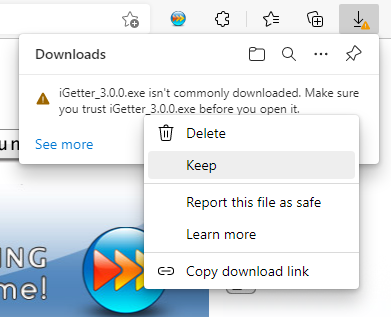
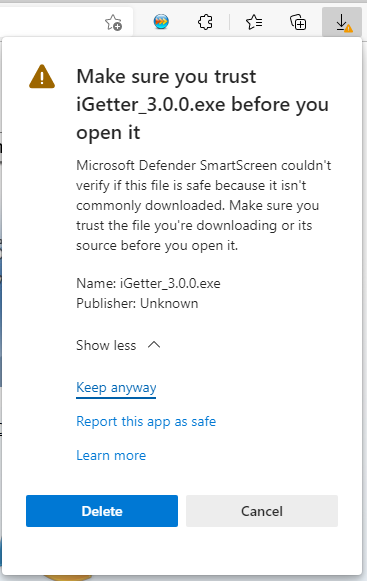
If you receive a message that app isn't commonly downloaded, then select the "Keep" command > "Show more" > "Keep anyway" link.
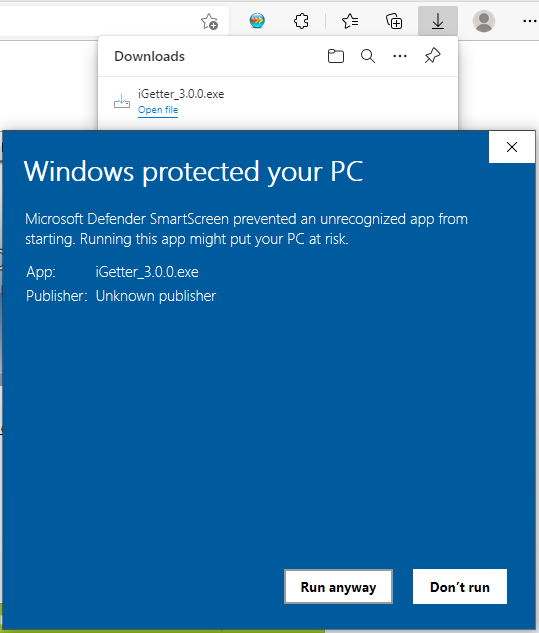
If you receive a message that Windows Defender Smartscreen prevented an unrecognized app from starting, then select "More info" link and click on "Run anyway" button.
iGetter Uninstaller (Windows version):
If you want to uninstall iGetter, you can use the Windows Control Panel, select Programs and Features (under the Programs section) and click Uninstall a program.
Installation Instructions (Mac version via Wine):
1. Download iGetter.dmg to your hard drive and open the disk image file. To install iGetter, just copy the iGetter folder from the dmg file to Applications folder on your hard disk.
2. Navigate to /Applications and open iGetter folder.
Then run: Update_iGetter.command
This installs iGetter and prepares the Wine environment in ~/.iGetter folder.
3. Follow the installer instructions to complete the iGetter installation.
STARTING iGetter
--------------
After installation, start iGetter by running: Launch_iGetter.command in /Applications/iGetter folder
For convenient access, you can drag Launch_iGetter.command to the
Documents/files section of the Dock.
Please, click Allow when permission dialogs appear for wine.
iGetter Uninstaller (Mac version via Wine):
1. Delete the iGetter folder from: /Applications
2. Optionally, remove the iGetter application data container: ~/.iGetter
This folder is hidden by default. To show hidden files in Finder, press:
Command + Shift + .
Alternatively, you can remove the container from Terminal with:
rm -fr ~/.iGetter
Removing ~/.iGetter deletes the application's stored data and
configuration. Make a backup first if you may need this data later.
iGetter Uninstaller (Mac version v2.x):
If you want to uninstall iGetter follow the instructions here.
Registration of iGetter
You may evaluate iGetter downloading the trial version. But if it suits your needs, you should consider purchasing it. iGetter will show a shareware reminder dialog at every startup during the evaluation. Registering iGetter will give us the opportunity to continue its development. All registered users will receive free support by email and will also get free updates in the major version (i.e. 2.x or 3.x versions).
Registered users of v2.x may upgrade free of charge to iGetter v3.x for Windows. This is an exception of our policy written above.
The registration fee may differ depending on your country or region.
To register iGetter choose the Register function from the Help menu, then click on the Purchase button.
To purchase a License other than a Single License, please visit our Web Store.
Localization
Users that contribute a new interface language for the Windows version of iGetter will receive a FREE personal license. Please, contact us for further instructions.